WordPress Screenshots
Languages: English • Screenshots 日本語 Nederlands • Русский • (Add your language)
If you want to see what WordPress looks like when it is installed, look no further, this is the right page.
Contents
The WordPress Twenty Eleven theme
The following are screenshots of the WordPress Twenty Eleven theme, taken using a new, unmodified installation of WordPress:
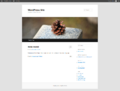
The main/home page (showing toolbar)
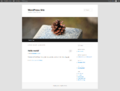
The Category Archive page (showing toolbar)
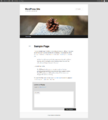
A static content Page (showing toolbar)
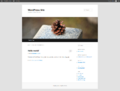
The Monthly Archive page (showing toolbar)
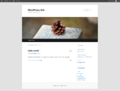
The Search Results page (showing toolbar)
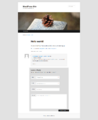
Result of Comment Submission (no toolbar)
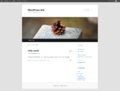
The Tag Archive Page (no toolbar)


And for comparison some screenshots of the TwentyTen Theme:
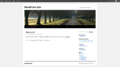
The main/home page (showing toolbar)
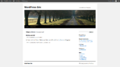
The Category Archive page (showing toolbar)
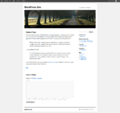
A static content Page (showing toolbar)
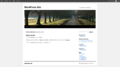
The Monthly Archive page (showing toolbar)
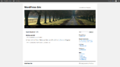
The Search Results page (showing toolbar)
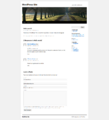
Result of Comment Submission (no toolbar)


Installation
This is what you will see when you install WordPress:
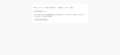
This is where the fun begins!
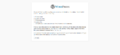
Information Needed
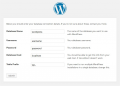
Enter Database Information
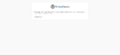
Everything connected!
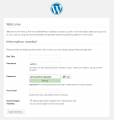
Enter Site name and email
All done!


The Administration Interface
Screenshots of all the admin pages follow:
Dashboard
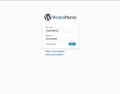
The login screen
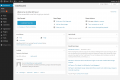
The Dashboard Welcome
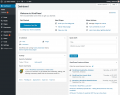
The Dashboard
Dashboard > Updates
Installing WordPress Update


Posts
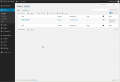
Posts
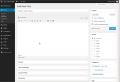
Add New
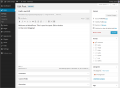
Edit Post
Edit Post Full Screen Mode
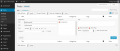
Quick Edit Post
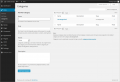
Categories
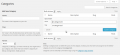
Quick Edit Category
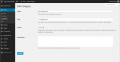
Edit Category
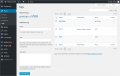
Tags
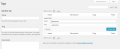
Quick Edit Tags
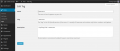
Edit Tag


Media
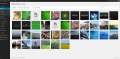
Library
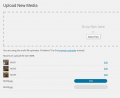
Add New
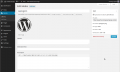
Edit Media
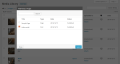
Attach File To Post


Links
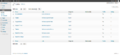
Links
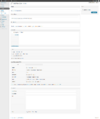
Add New
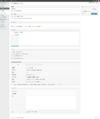
Edit Link
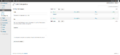
Link Categories
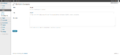
Edit Link Category
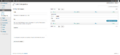
Quick Edit Link Category


Pages
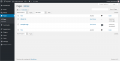
Pages
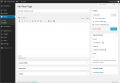
Add New
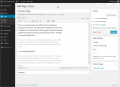
Edit Page
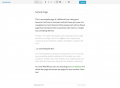
Edit Page Full Screen
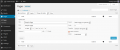
Quick Edit Page


Comments
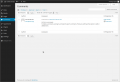
Comments
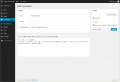
Edit Comment
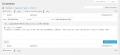
Quick Edit Comment
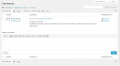
Reply to Comment


Appearance
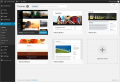
Themes
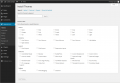
Search
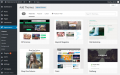
Search Results Displayed
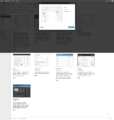
Install Now box
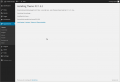
Theme installed, ready to be activated.
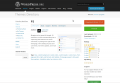
Download the theme zip file
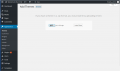
Upload and Install Now
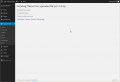
Theme installed, ready to be activated
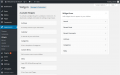
Widgets
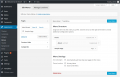
Menus
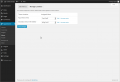
Maintain a Menu
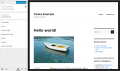
Theme Options
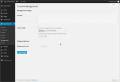
Background
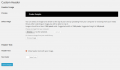
Header
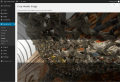
Crop Image Header
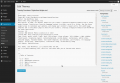
Editor


Plugins
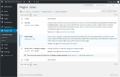
Plugins
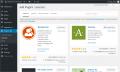
Add New
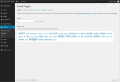
Plugins - Install Step 1
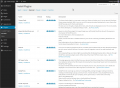
Plugins - Install Step 2
Plugins - Install Step 3
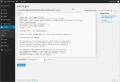
Editor


Users
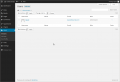
Users
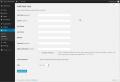
Add New
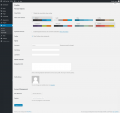
Your Profile


Tools
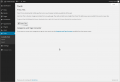
Tools
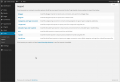
Import
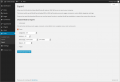
Export


Settings
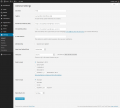
General
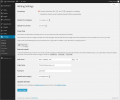
Writing
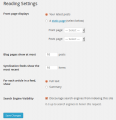
Reading
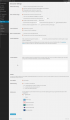
Discussion
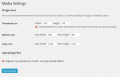
Media
Privacy
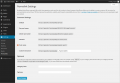
Permalinks


Network
Install
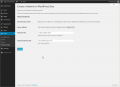
Create a Network

Dashboard
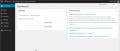
Admin
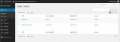
My Sites


Sites
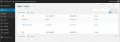
All Sites
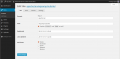
All Sites, Edit Info
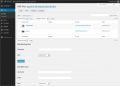
All Sites, Edit Users
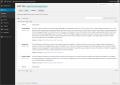
All Sites, Edit Themes

All Sites, Edit Settings
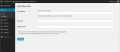
Add New Site


Users
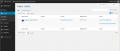
All Users
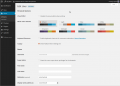
All Users, Edit Users
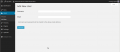
Add New User


Themes
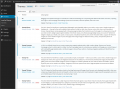
Installed Themes
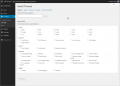
Add New Theme
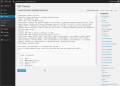
Theme Editor


Plugins
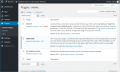
Installed Plugins
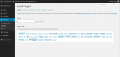
Add New Plugins
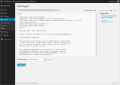
Plugins Editor


Settings
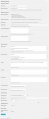
Network Settings
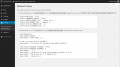
Network Setup


Updates
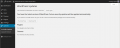
Available Updates
Update Network

